

Importing & exporting data
Bringing your existing customer list in, and getting your data back out, both as plain CSV.
Importing customers
If you're moving from a spreadsheet, a notebook, or another app, you don't have to add every customer by hand. From Customers → Import customers, you can upload a CSV of your existing list in one go.
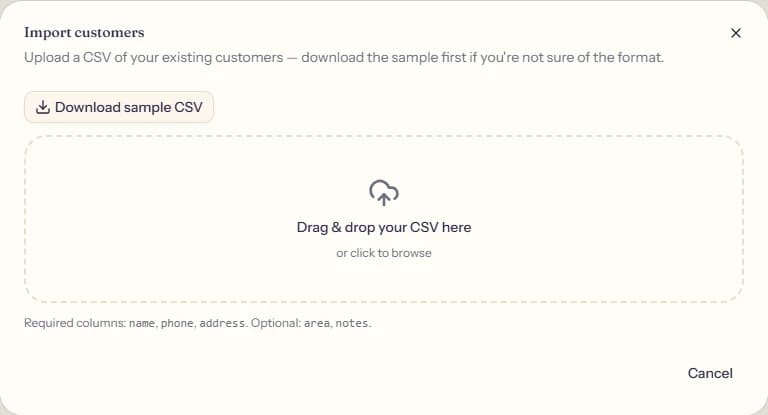
If you're not sure of the format, click Download sample CSV first,
it's a template with the right column headers already filled in with an
example row. The required columns are name, phone, and address.
area and notes are optional.
Drag your file onto the upload area, or click to browse for it. TiffinCloud reads every row and shows you a preview before anything is actually created, so you can see which rows are ready and which ones have a problem (a missing phone number, an area name that doesn't match one you've already set up, that kind of thing) and fix the file instead of importing something broken. Pick which of the valid rows you actually want, and import them. Anyone whose phone number already exists in your account gets skipped automatically, so re-running an import after fixing a few rows won't create duplicates.
Exporting your data
Data Export in the sidebar gives you your data back out, no strings attached.
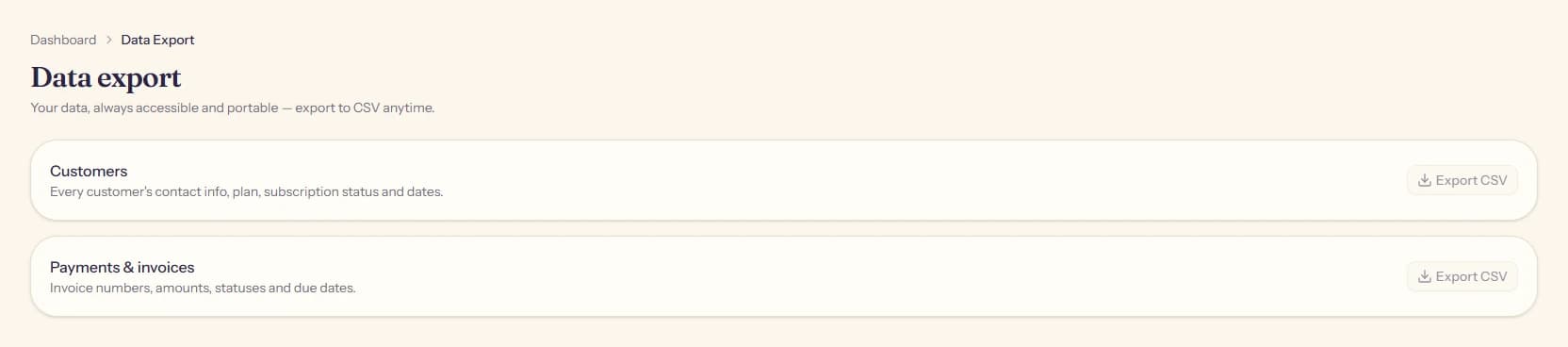
Two exports are available right now:
- Customers: every customer's contact info, which plan they're on, subscription status, and their start and end dates.
- Payments & invoices: invoice numbers, amounts, statuses, and due dates.
Each one downloads straight to a CSV file on your computer, ready to open in a spreadsheet or hand off to another system.